
Support Scores, Notes & Tags
Support Scores
A Support Score tracks a voter's level of support for your candidate or initiative. When you add a Support Survey Question to a Program, volunteers can log each voter's Support Score based on their conversation.
Use the Support Score filter under Survey Responses on the Explore Page to see where your supporters are located.
Use the Goal Tracker to calculate how many supporters you need to win on Election Day.

Notes
Notes let you capture details from a conversation that a tag or survey question doesn't cover. Users can also edit or delete a note and can use voice-to-text to add notes hands-free while out in the field.
Tags
Users can track any data point they would like for the people they are making contact with by creating data tags in the RunningMate platform. This can be done in two ways: importing a sheet with tags added, or by adding individual tags to the workspace via the Data Management tool.
How to Create and Import Tags
Tags can be created by owners, admins, and data managers.
- Click Data Management in the left-hand menu on a computer.

- Select the Tags tab near the top of the screen
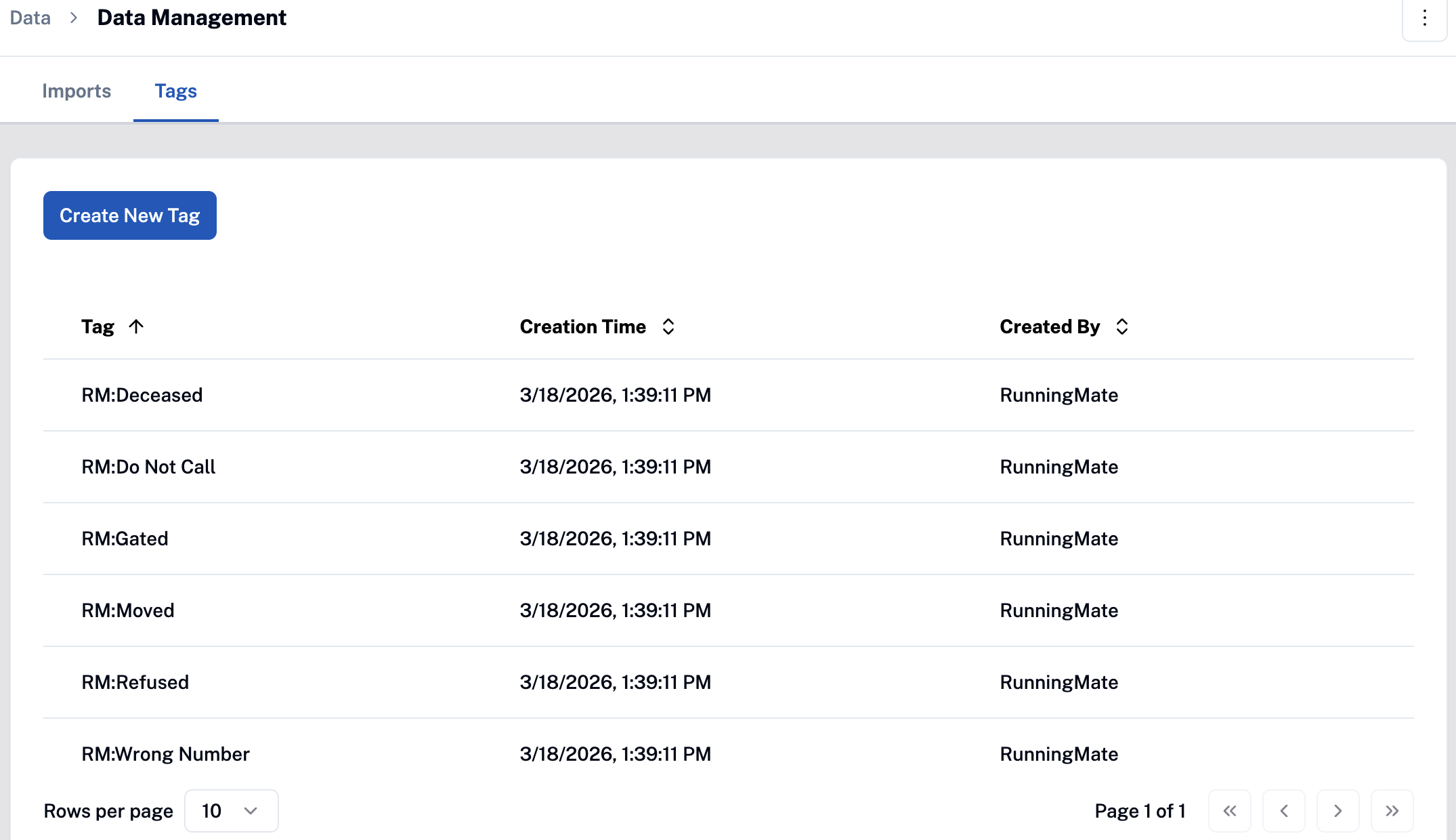
- Click the Create New Tag button

- Enter the name of your tag
- Tag names must:
- Be less than 50 characters
- Not contain asterisks (*), open caret (<), closed caret (>), forward slash (/), or backslash (\)
- Tag names must:
Tags can also be created when a user imports a CSV that includes tags, if those tags do not yet exist in the platform.

What sort of tags should I create? What datapoints should we track?
Anything your campaign or organization will want to track as they are making contact with voters.
- One-time Donor
- Recurring Donor
- Volunteer
- First Time Voter
- Priority Issues
- Not Home
- Wants Yard Sign
- Received Yard Sign
Updating Survey Responses, Tags, & Notes
If you want to modify any of these fields while you're not canvassing, you can do so by selecting Find People in the navigation bar and following the steps below:
- Click Find People and search for the voter's name or address
- Select the voter's profile
- Scroll to the bottom of the voter's profile to locate the tags, notes, and survey section
- Click the edit icon beside Tag, Note, or Survey response sections to edit, or select Create Note to add a new note
- Click Save
A few notes for account owners, admins, and data managers:
Before your first canvassing event, be sure you've created tags for any data point you'd like to collect while in the field. A few examples are:
- Priority issues,
- First time voter,
- Needs a yard sign,
- Donor,
- Wants to volunteer, etc.
Second, be sure canvassers have been added to the RunningMate workspace. The volunteer user role can make updates at an individual level via Canvassing or the Search functions.
When to Use Tags
Auto-Tagging Non-Response Codes
To prevent the wasted effort of contacting records that are no longer reachable or relevant to their goals, data managers may want to exclude certain people from their lists.
Common scenarios include voters who have moved, live at an address that is in a gated location, have expressed the desire not to be contacted (refused), or are deceased. To help, they can use RunningMate generated tags, which we refer to as reserved tags. These reserved tags are system-generated, exist in every workspace, and cannot be renamed or deleted.
These tags are created when a volunteer or staffer adds canvass codes like Moved, Gated, Deceased, Wrong number, Refused, or Do Not Call.
The following tags will be created for existing and new workspaces:
- RM:Moved
- RM:Gated
- RM:Deceased
- RM:Wrong Number
- RM:Refused
- RM:Do Not Call
These tags will appear in Data Management > Tags and the creator will be displayed as RunningMate. These tags cannot be deleted or edited. Users will get an error message if they try to create a tag with the same text as a RM reserved tag.
When a voter is marked with any of the following non-response codes the corresponding RM reserved tag will be automatically applied to that voter:
| Non-response code | RM Reserved Tag Applied | Available in |
| Moved | RM:Moved | Canvassing and Phone Banking |
| Gated | RM:Gated | Canvassing |
| Deceased | RM:Deceased | Canvassing and Phone Banking |
| Wrong Number | RM:Wrong Number | Phone Banking |
| Refused | RM:Refused | Canvassing and Phone Banking |
| Do Not Call | RM:Do Not Call | Phone Banking |
Users are able to add or remove RM reserved tags on a voter’s record through canvassing, phone banking, or search. Users are also able to add reserved tags to a voter through import.
If a user wishes to exclude voters with any of the response codes above for their outreach, they can do so on Home (Explorer page) by using the exclude option in the Tags filter and then creating lists programs from the corresponding saved filters or saved universe.