
How to Make a Note on a Voter's Profile
Notes let you capture details from a conversation that a tag or survey question doesn't cover. Users can also edit or delete a note and can use voice-to-text to add notes hands-free while out in the field.
When a note is created, the time it was entered and the name of the person who created it are shown on the voter's profile. For example, if a voter mentions they would like to help you go door-to-door and you don't have a tag for that, you can add a note that says Interested in volunteering.
Adding a Note
To add a note to a voter's profile:
- Log in to runningmate.io
- Go to the left sidebar menu under the Voter Contact group and select Canvassing to access your canvass packet or select Phone Banking to access your phone bank packet.
- Select your Program and then select your assigned Packet.
- Tap the house marker on your map or select from the list of addresses on the left side of the screen to access the profile of the residents at each address
- Select the name of the person you want to speak with
- Scroll to the bottom of the voter's record to locate the Notes section
- Type your note in the text box or click the microphone icon to enter your note using voice-to-text
- Click Save
- Your note will display the name of the user who entered it and the time it was entered

Editing or Deleting a Note
To edit note:
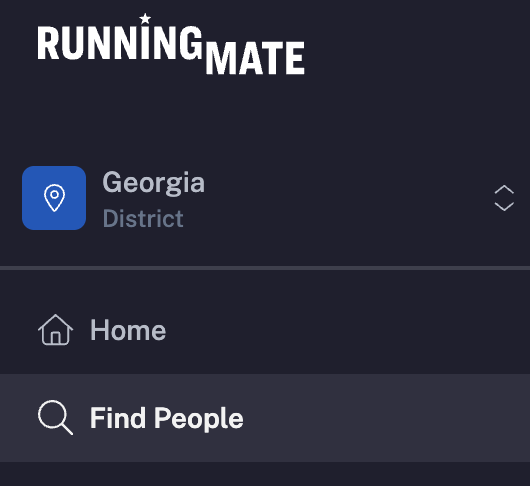
- Locate the note in the Notes section of the voter's profile, which can be found in your canvassing or phone banking packet or select Find People in the navigation bar to search their name
- On the voter's profile, locate the note section and click the edit icon beside the note
- Make your changes and click Save
To delete a note:
- Locate the note in the Notes section of the voter's profile, which can be found in your canvassing or phone banking packet or select Find People in the navigation bar to search their name
- On the voter's profile, locate the note section and click the delete icon beside the note
- The note will be removed from the voter's profile
Other Notes
- Adding a note has no effect on contact status and is not considered a contact attempt. Be sure to also log a response using Start Conversation or Voter Unavailable if you are canvassing or phone banking.
- Tags are a great option for information you track often. You can create tags by clicking Data Management on the left-hand navigation bar
- Visit How to Filter by Notes to learn how to find voters who have notes
- Notes can be exported through the Download CSV option