Creating A Script Using Survey Prompts & Questions
Campaigns and organizations need the flexibility to create a script that collects information beyond the preloaded questions (support score and registration intent). You can create scripts through customized prompts and survey questions.
You can create custom survey questions and prompts in the Survey Library under the Field Management section of the navigation menu.

You can customize survey questions and prompts in the Survey Library, or you can create and modify them in your program under the Survey Management tab.
The preloaded support score and registration intent survey questions are listed in the library but cannot be edited and will always be “Active” status

View the roles and permissions chart to see what user roles can modify survey prompts and questions.
- You can add and edit survey prompts and questions in the Survey Library or within a program
- You can also archive and restore survey prompts and questions at any time. Prompts and survey questions have two statuses:
- Active state = Available to be added to canvassing and/or phone banking surveys in Programs
- By default, when a custom survey question is created, they are in active state
- Archived state = Not available to be added to a survey and not active in any program
- Once a question is archived, any responses associated with a voter from the archived question will be removed from the voter
- Active state = Available to be added to canvassing and/or phone banking surveys in Programs
Create & Edit Survey Prompts in Survey Library
- Select the Survey Library in the navigation bar
- Click the Prompts tab, enter the Name and Prompt, and select the Save button

Create & Edit Survey Prompts in Programs
- Click Program in the navigation bar and select the edit icon beside the program you want to update

- Click the Survey Management tab
- Click Edit to add, remove, and reorder survey prompts
Adding a Survey Prompt in Programs
- Click on the Add Prompt button
- Click the dropdown menu and select Create a prompt

- Input desired text for the prompt
- Prompts have a max character limit of 1500, and only plain text is allowed
- Rich text, links, or media are not supported at this time
- Line breaks are preserved
- Prompts have a max character limit of 1500, and only plain text is allowed
- Click Save to save your updates
Editing and Deleting Survey Prompts in Programs
- Click the pencil icon to edit and then click Save when done
- Click the X icon to delete a prompt
- Reorder your prompts by clicking the 6 dots found on the left side of the card and dragging to the desired order.
- Click Save when all edits are complete.
Additional notes for survey prompts:
- Once saved, the view becomes read-only
- Prompts will be shown with a blue background
- What is displayed in the read-only view is also how it will be displayed in canvassing and phone banking
Create & Edit Survey Questions in Survey Library
- Select the Survey Library in the navigation bar
- Click the Questions tab and enter the Name, Question Label, Question, and Response Options, and click Save
Survey Question Example

Naming your Survey Question
- This is the name of the question
- Cannot have questions with the same name
- You will be able to edit the name later
- 20 character limit
Creating a Question Label
- Auto-generated based on the Name
- The app will automatically prefill with the first 9 characters of the name for the question label, but you can edit the label
- Used on printed PDF packets to identify the question under the Surveys column
Creating the Question:
- Content of the question. This is the text that will appear in canvassing and phone banking as the question that will be asked to voters
- 250 character limit
- Cannot use the same question text for multiple questions
Response Options
- Name = name of the response code
- Response Code = multiple choice options
- Auto-populates with the same text as Name but can be edited
- This is the text that will show up as the multiple-choice options for logging a response in canvassing and phone banking (e.g. the Yes and No options below)
- Acceptable text includes letters, numbers, underscores, colon, and dash. Spaces are not allowed.
- Character limit of 5 characters
- A minimum of two responses is required to save a custom survey question and responses are multiple choice
- Short Code = abreviated Response Code
- Auto-generated with the first text of the Name field and can be changed by the user
- Must be unique for the question
- Character limit of 1 character
- Once all fields have been filled out, click “Save” to create the custom survey question
- Editing of the custom survey question is not allowed after creation
- Once a custom survey question is created, it will automatically be set to “Active” and can be added to a Program.
Create & Edit Custom Survey Question within a Program:
- Go to your Program and click on the Survey Management tab
- Click Edit to add, remove, or reorder questions
- To add a question, click the Add Question button and select from the drop-down of available questions
- Click the X icon to delete a prompt
- Reorder your prompts by clicking the 6 dots found on the left side of the card and dragging to the desired order.
- Click Save when all edits are complete. Once saved, the view becomes read-only
Additional notes for survey questions:
- By default, the "Can we count on your vote in this election?" and "Do you intend to register to vote?" are preloaded survey questions for every program
- You can delete these preloaded survey questions by clicking the X icon
- The "Do you intend to register to vote" question only appears when the person is unregistered to vote. If this is the only survey question being used, the registered voters will not appear on the list
- Survey Questions are shown with a white background
- A program must have at least one survey question configured
- The survey questions are applicable to both canvassing and phone banking
- For printed packets, only the top 3 survey questions will be included in the print packet
View Survey Questions and Prompts When Canvassing and Phone Banking
There are two ways canvassers and phone bankers can preview the script made up of survey questions and prompts :
- Click Phone Bank or Canvassing in the navigation menu, and click the Preview Survey button
- 0r Click Phone Bank or Canvassing in the navigation menu, select your packet, and then select the Start Conversation button

Custom Survey Questions in Printed PDF Packets and Data Entry UI
In this initial version of custom survey questions the top 3 questions configured in a survey will appear in printed PDF packets and in the data entry UI. Additional questions will not appear due to space restrictions. We may explore solutions for this limitation in the future if printed PDF packets become a more heavily used feature.
Please note the following for printed PDF packets/data entry UI and custom survey questions:
- For the standard support score question:
- If support score IS included in the Program survey configuration, the "Prior Sup." column appears in the PDF packet
- If support score IS NOT included in the Program's Survey Configuration, the "Prior Sup." column does not appear in the PDF packet
- For the registration intent question:
- If the voter is already registered, the registration intent question is hidden in the printed packet
- If the voter is unregistered, the registration intent will be included in the printed PDF packet
- The question and answer key for custom questions is found on the second page of the instructions page of the printed PDF packet
- When downloading printed PDF packets, the system will look at the current survey configuration and download that version
- Historical versions of PDFs are not stored
- Note that once you download a PDF packet it is cached for 1 hour and subsequent downloads of that PDF packet within that hour will not reflect any survey configuration updates
- Data entry options depend on the survey configuration at the time of data entry, not the survey configuration at the time of PDF generation
Filtering on Custom Survey Question Responses
Users will be able to filter on custom survey question responses on Home in the same way they can filter on response for standard questions. In the future users will also be able to filter on customer survey question responses in Universe Builder and be able to see logged responses for a voter in Search.
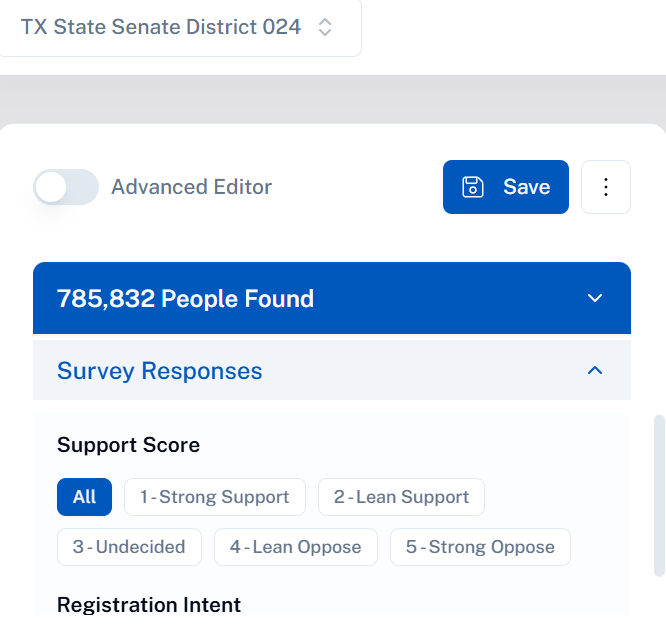
- All custom survey questions for the district will appear in the "Survey Responses" filter group on Home
- In the future we will update to remove archived questions in the filters on Home
- Standard survey questions (Support Score, Registration Intent) appear first followed by custom questions and are listed alphabetically by Name.