
Canvassing Training
Volunteer Guide: Canvassing with RunningMate
Click here to print an abbreviated PDF Volunteer Guide
RunningMate runs in your phone's web browser — no app to download! You'll open your assigned walk packet, knock doors, and log every result as you go.
Step 1: Register
- Accept your invite. Search your email for a message from no-reply@runningmate.io and click the "Complete Registration" button
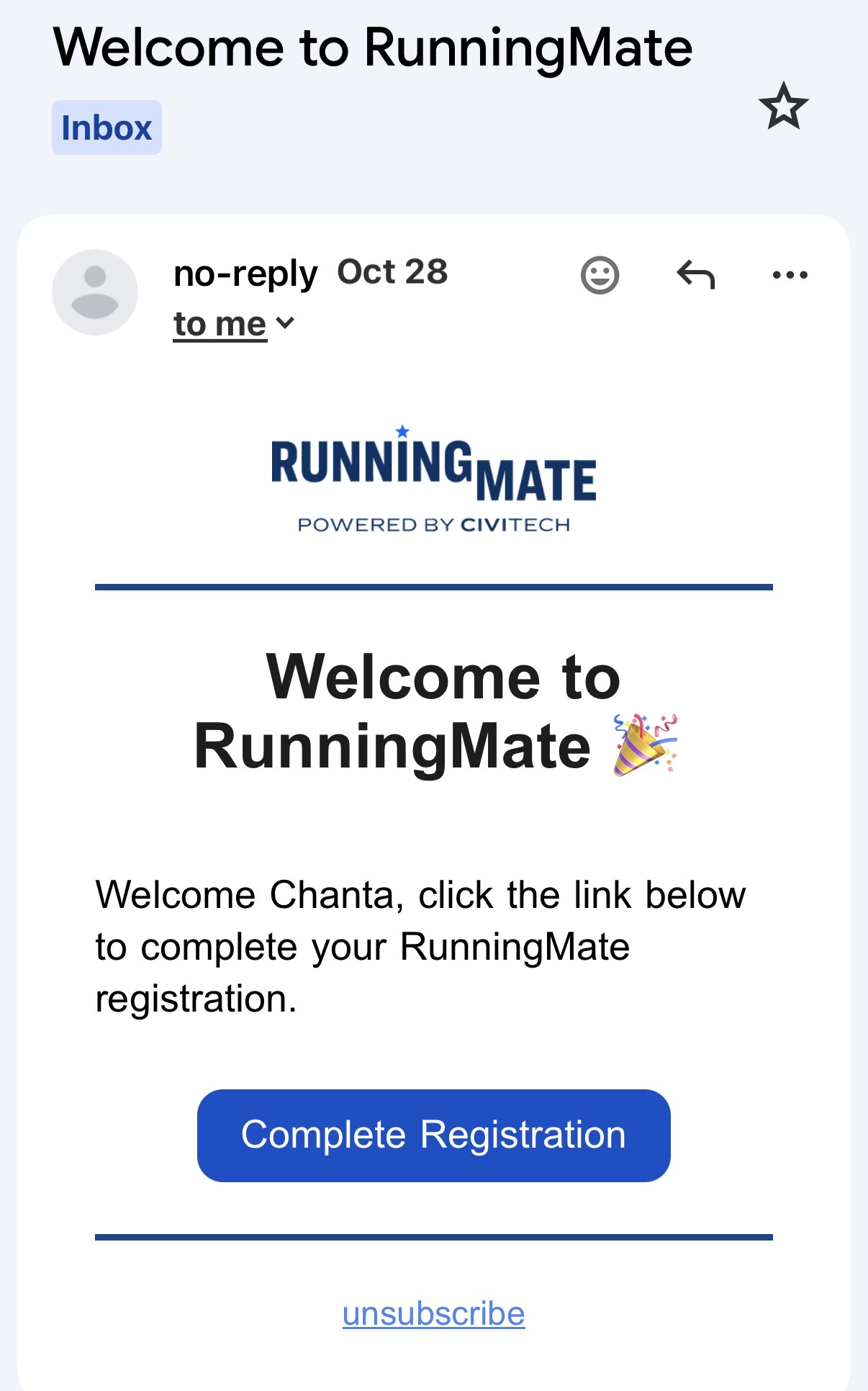
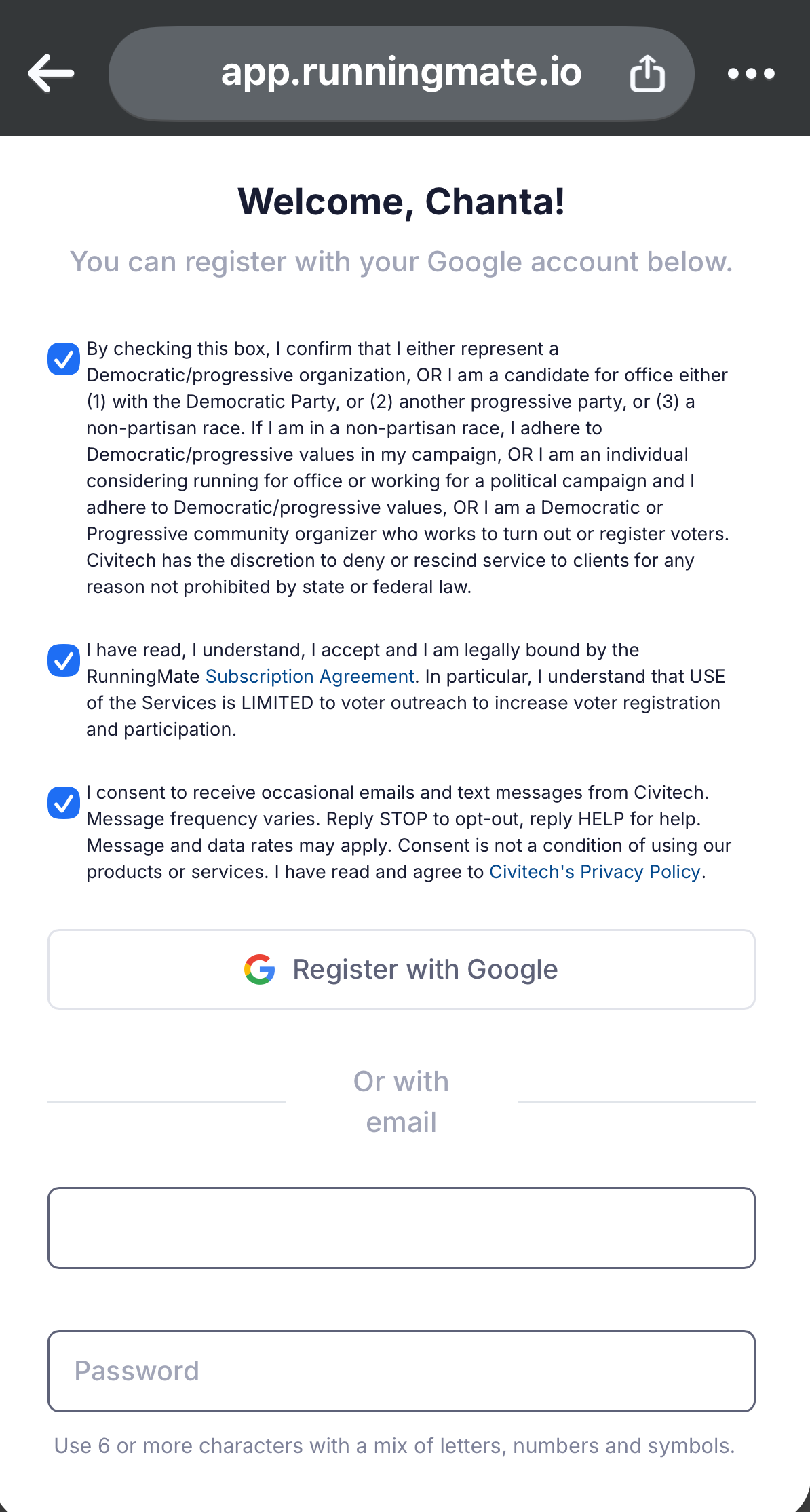
- Register your account. Select the terms of agreement and register your account with Google or by typing in your email and creating a password
- Turn on location services for your browser so you can access RunningMate's canvassing map features (Chrome, Safari, Firefox)
Step 2: Log in
- Using your phone's browser, visit app.runningmate.io and log in
Tip: Bookmark app.runningmate.io or add it to your home screen for easy access
Step 3: Open your packet
Open your packet
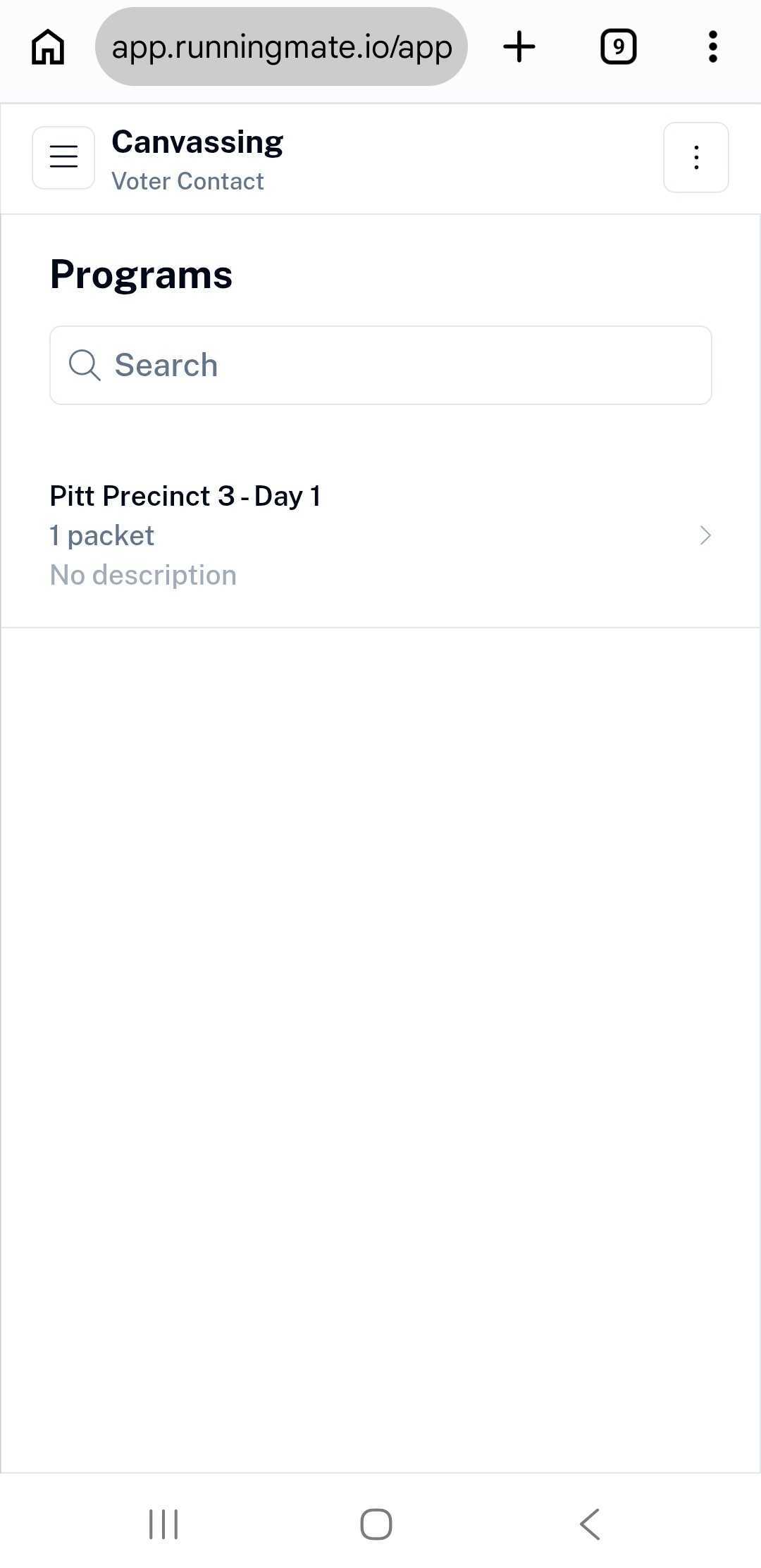
- Click Canvassing in the blue navigation bar on the left-hand side of the page
- Select a Program from your list of assigned canvassing programs
- Select Preview Survey to practice your script before you start knocking doors. Click the "Got It" button at the bottom of the screen or the "X" symbol when you're done
- Select a Packet from your list of assigned walk packets
Step 4: Start knocking doors
- After selecting a packet, you will see a list of homes sorted by street address
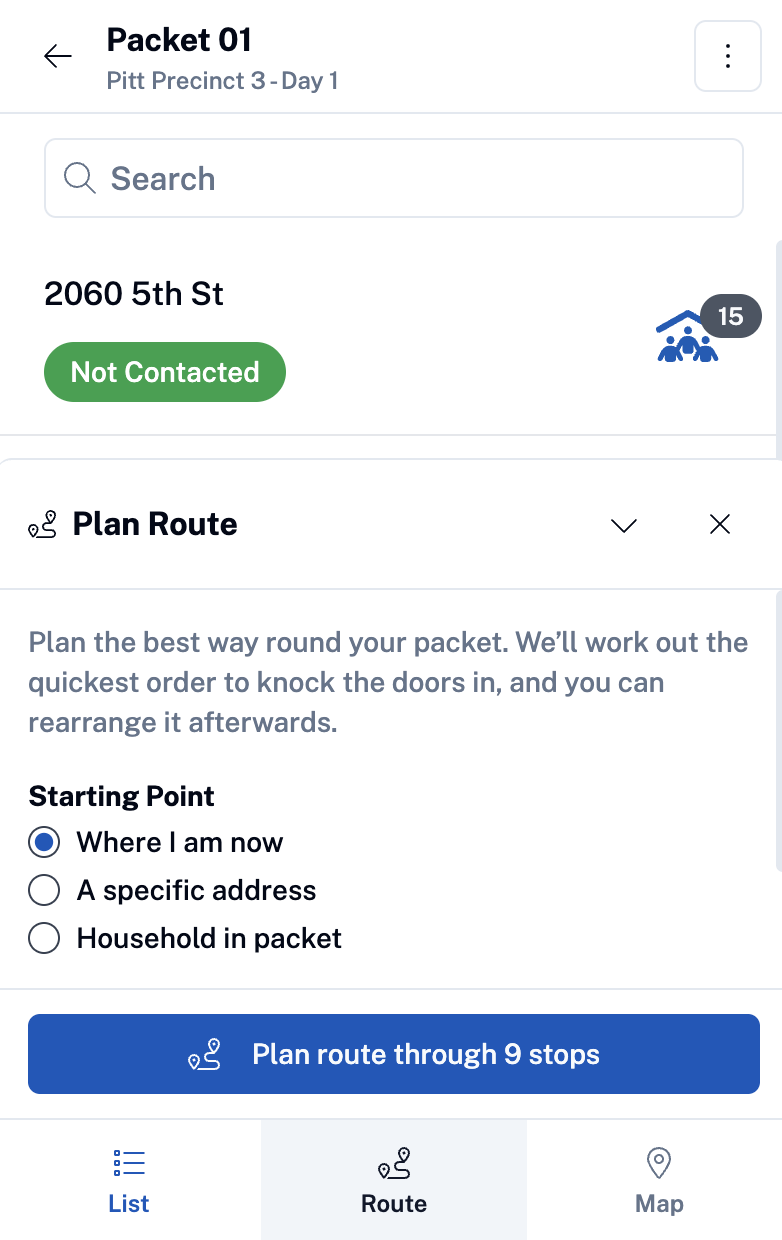
- Select the Route icon to plan your route starting at your current location, a specific address, or a household in the packet
- Select your Route Mode (ie- walking, biking, or driving)
- Select the "Plan route through XX stops" button at the bottom of the screen
- Select the Map icon at the bottom of the screen to view your route on the map (or continue with list view and skip step 5-8)
- Select the blue Start Route button to begin your route
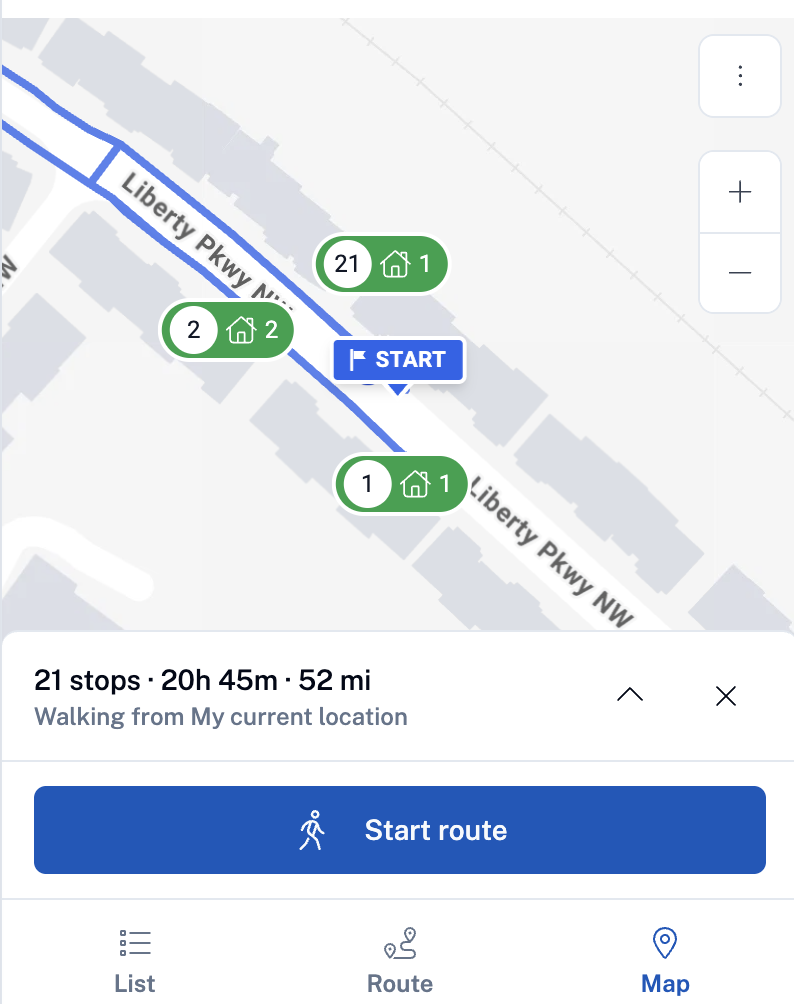
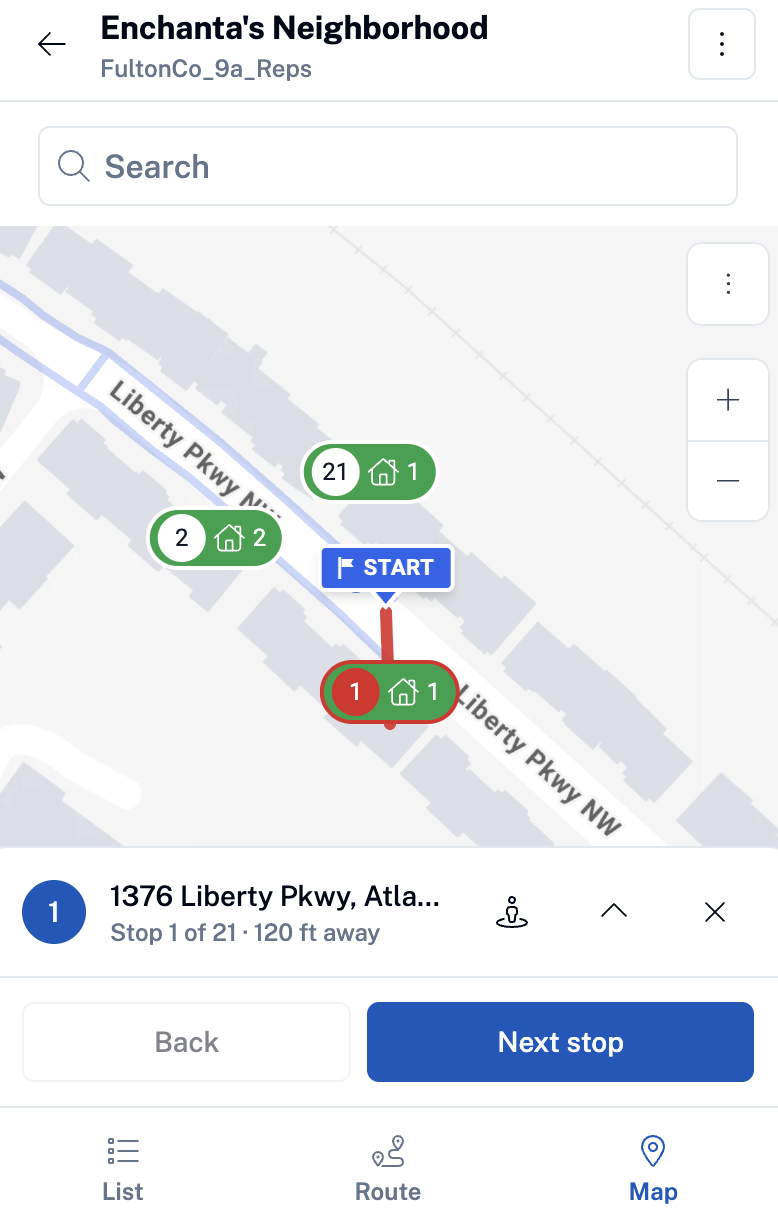
- Walk, bike, or drive to the address that is marked with the word "Start"
- Select the house icon when you arrive at the address to display the resident's name and details
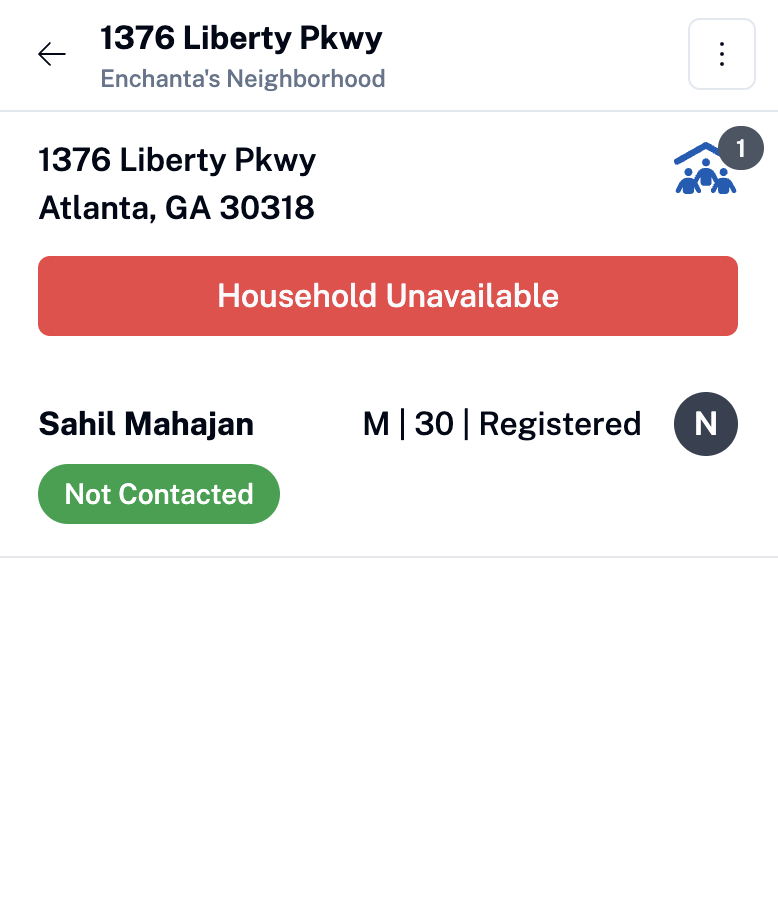
- Select the resident's name to display the script and log your conversation (If you are on list view, select the address and then select the resident's name)
- Click the red Household Unavailable button if no one is available and log the reason you were unable to speak with them.
Tips:
Select the street view icon beside the address to get a Google Maps street view
Zoom in if you don't see markers.
Step 5: Log Conversation
- If the person answers the door: tap Start Conversation, follow the script, mark their answers, and tap Submit Survey. Nothing saves until you tap Submit.
- If the person is unavailable: tap Voter Unavailable and select a reason:
- Not Home — the door stays open for another try
- Refused, Moved, Deceased, or Gated — the door is marked done
Tips:
- Add a note for anything the survey doesn't cover. Type it or tap the microphone to dictate.
- Made a mistake? Tap Edit Conversation to fix your answers.
- Tap Back at the top and pick your next door.
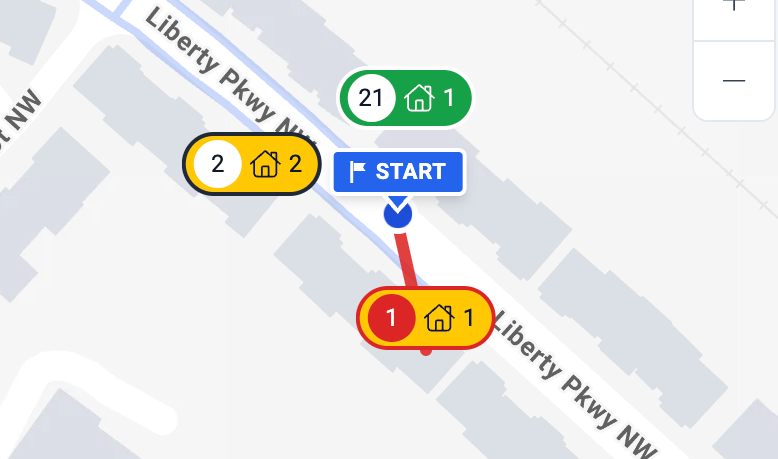
Map Legend
|
Color |
What it means |
What to do |
|---|---|---|
|
Green |
Not contacted yet |
Knock |
|
Yellow |
Tried, but not home, or someone in the house is still unresolved |
Try again later |
|
Grey |
Done — talked to them or marked a final reason |
Skip |
Troubleshooting
| Problem | Fix |
|---|---|
| Can't find my invite email | Search your inbox and spam for no-reply@runningmate.io. Ask your organizer to resend it if it expired. |
| My packet isn't showing | Packets only appear once assigned to you. Ask your organizer to check your assignment. |
| No house markers on the map | Zoom in. Make sure location services are on for your browser. |
| My answers didn't save | Tap Submit Survey after every conversation, or choose a Voter Unavailable reason. |
| Logged the wrong answer | Tap Edit Conversation on the voter's profile. |
| Bad cell signal on my turf | Ask your organizer for a printed walk packet. They'll enter your results afterward. |